Overview
NabBot uses Application (slash) commands. Type / in Discord to browse or search commands with guided arguments and
validation.
New here?
For a primer on what slash commands are and why Discord moved to them, see Features → Commands.
Where commands work
- Slash commands appear in channels where they are enabled in Server Settings → Apps → Integrations → NabBot
- Some commands may still need extra perms like Embed Links or Attach Files
- DMs: some commands, like /check-dm, are available there, while others are disabled by design
Using commands efficiently
- Start with
/, type to filter, or scroll the list. - Press Tab / Shift+Tab to move between arguments.
- Required fields show first; optional fields appear after.
- Many arguments validate before you submit, catching mistakes early.
- You send a command payload, not a visible text message. The chat shows only NabBot’s response.
Common UI components
Many NabBot commands include interactive components so you don’t have to spam new messages.
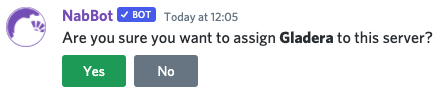
Confirmation
Some actions need confirmation to prevent accidents (like disabling a feature).
- Click Confirm or Cancel under the bot’s message.
- Only the user who ran the command can confirm.
- If you don’t respond in time, it auto-cancels.
Paginator
Results that don’t fit in one message show pagination controls, for example in commands like /deaths all.
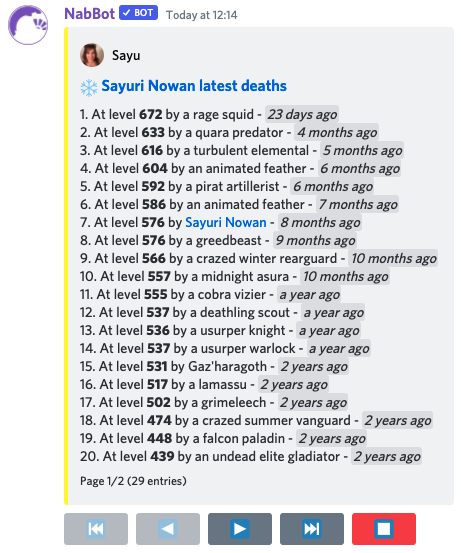
 first page
 previous page
 next page
 last page
 close pagination
Only the command invoker can change pages.
Vocation filter
Some lists can be filtered by vocation using extra buttons, for example in /search-team by-level.
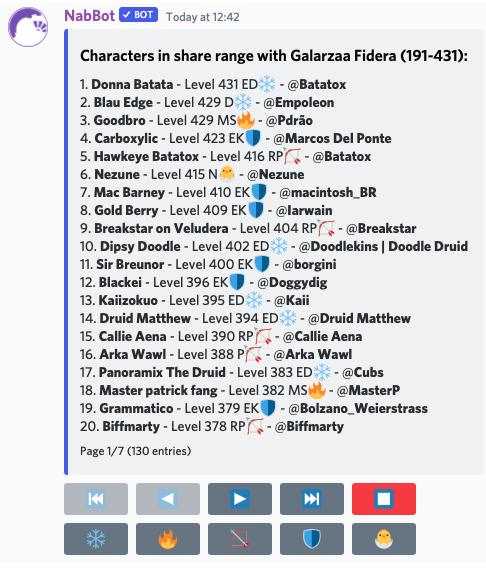
 sorcerers
 knights
 paladins
 druids
 monk
monk no vocation
Unavailable vocations won’t show a button. Multiple filters can be active at once; click again to toggle off.
Choice selector
If your input matches multiple results, NabBot shows a dropdown to pick the exact one.
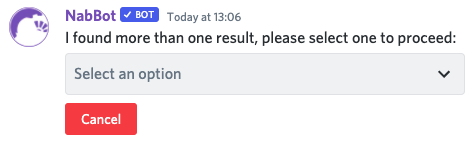
Click to open and choose:
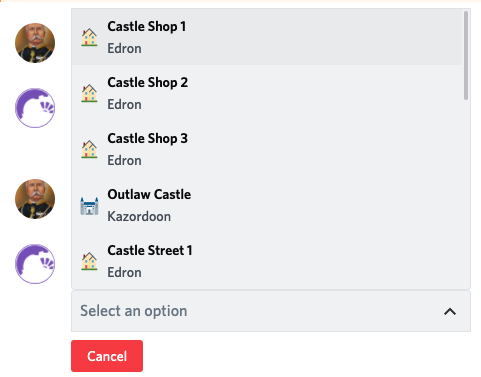
Options may include a name, description, and an emoji relevant to the entry. After choosing, the command continues.
Quick troubleshooting
I don’t see a command
- It may be restricted to certain roles/channels.
- You might be looking for a subcommand; try its parent (e.g.,
/eventfor /event create).
Permission error
- Ask an admin to review command overrides in Integrations → NabBot → Manage.
- Some commands ship with default restrictions; these can be changed.
No output or ‘silent’ result
- Some responses can be ephemeral depending on your client/context.
- Check channel restrictions and whether embeds/files are allowed.
What’s next
Browse the command categories in the sidebar for detailed usage of each command.