Application commands
NabBot uses Application (slash) commands. They show up in the Discord UI with names, descriptions, and guided arguments, so you don’t have to memorize syntax.
What happened to chat commands?
NabBot no longer supports “chat commands” (prefix messages like nb. or @NabBot).
They’re described here only for context.
From Chat Commands to Slash Commands
Then: Bots scanned every message for a special prefix, then parsed text after it.
In April 2022, Discord limited message content access for bots. That change made chat commands clunky, since bots
couldn’t reliably read messages.
Now: Slash commands are registered with Discord. When you type /, you see a searchable list of commands with
their descriptions and parameters.
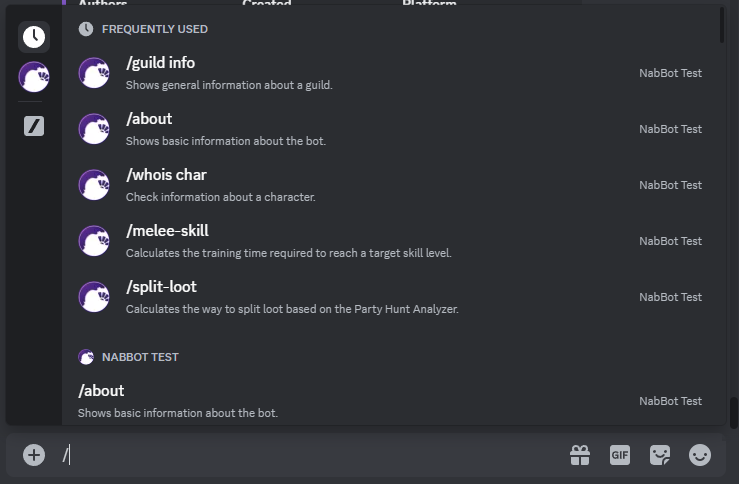
Using slash commands
Start typing / and either browse or type to filter. No need for a separate “help” command.
Command arguments
Slash commands show arguments inline, including which ones are required.
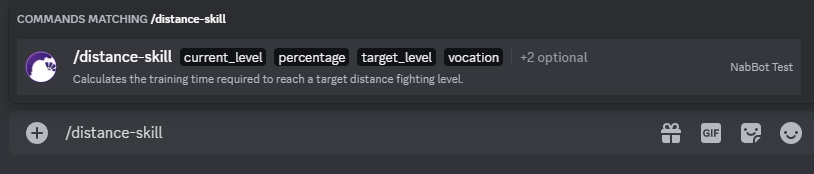
Press Tab and Shift+Tab to move between arguments. As you complete required fields, optional ones appear.

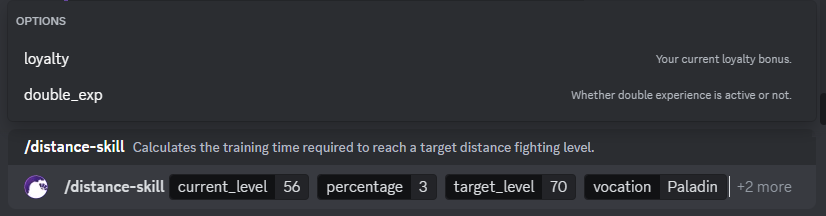
Commands can validate inputs before you submit, so you catch mistakes early.

Unlike chat commands, you’re not sending a visible text message. The chat shows only the bot’s response.
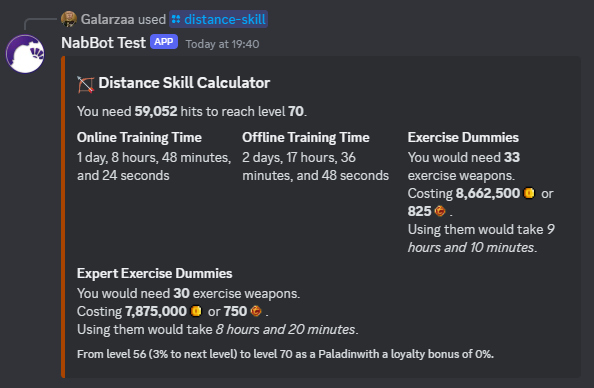
Argument options
Some arguments offer a fixed set of options you can choose from.
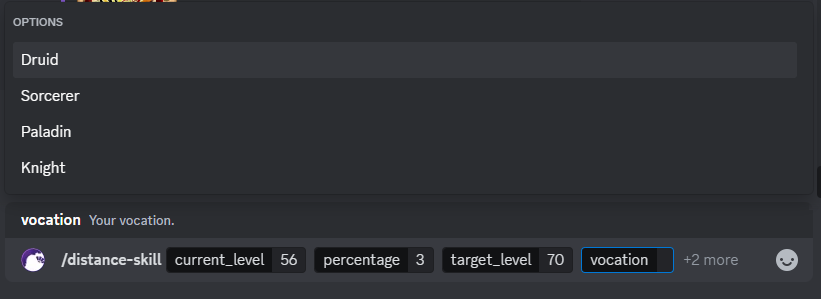
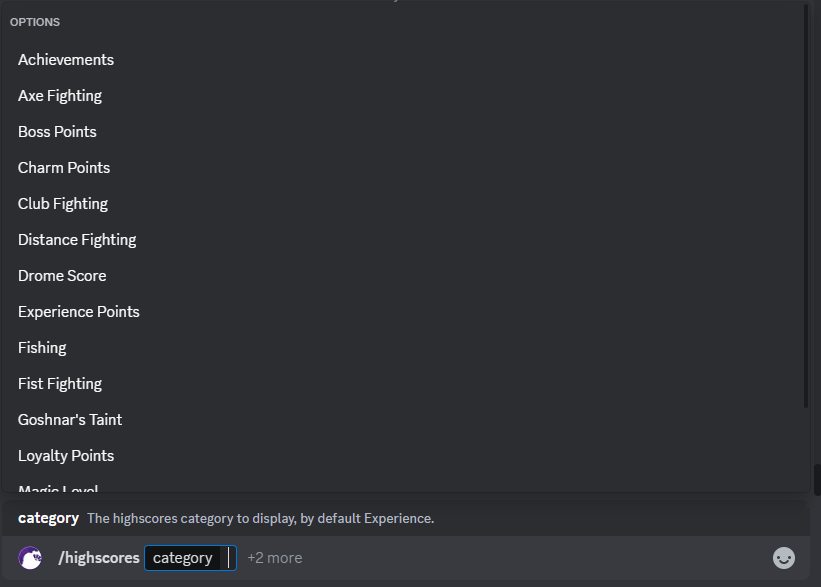
Special argument types
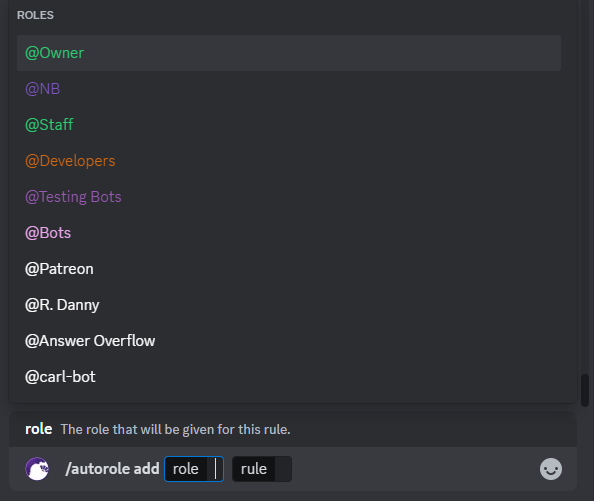
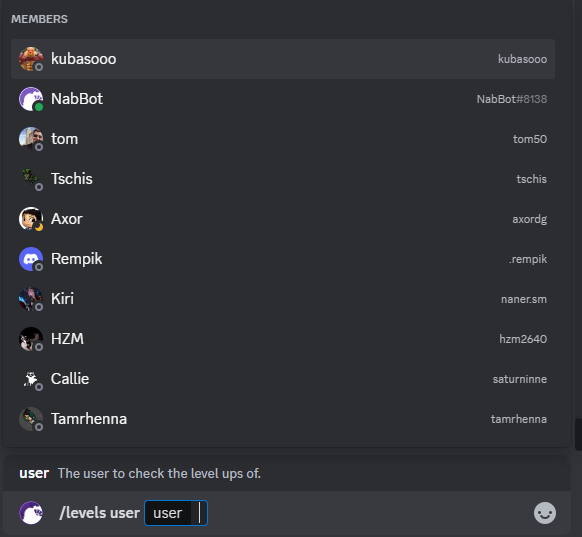
Slash commands support Discord-native types like users, roles, and channels. This avoids quoting and accidental pings.
For example, creating an autorole rule used to require quoting roles with spaces or mentioning them (which pings everyone). With slash commands, you just pick the role from a list:
User selection is equally precise. Instead of guessing names or IDs, pick the exact user:
Autocompletion
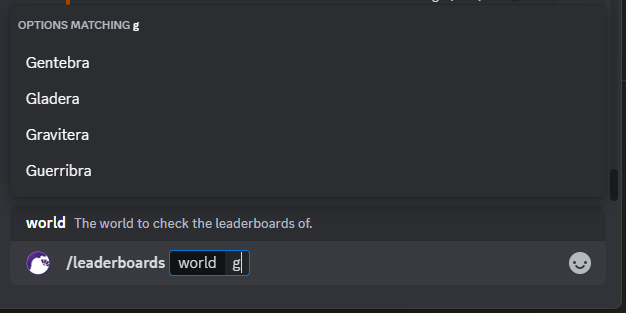
Beyond fixed options, some commands provide dynamic autocompletion based on what you type. This supports large or changing lists and multiple search styles.
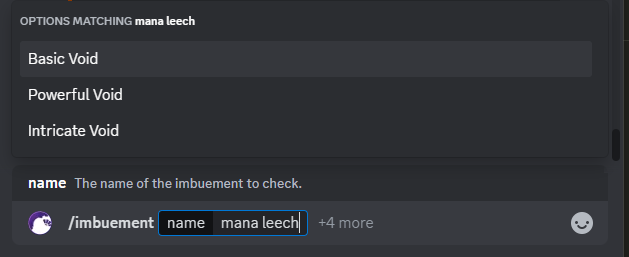
Another example: /imbuement lets you search by effect, not just by name.
Permissions and controls
Discord lets you control who can use commands and where they can use them.
Path: Server name → Server Settings ⚙️ → Apps → Integrations → find NabBot → Manage.
There you’ll see global settings and all top-level commands (subcommands like
/event create inherit from their
parent).
Some commands ship with default permissions. For instance, /settings starts
restricted to those with Manage
Server, but you can change that.
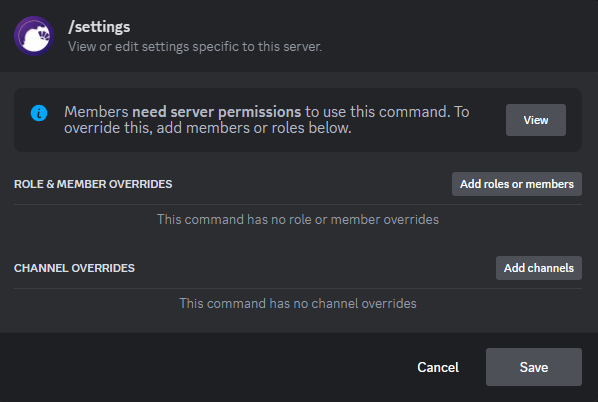
You can also add overrides for roles, members, and channels:
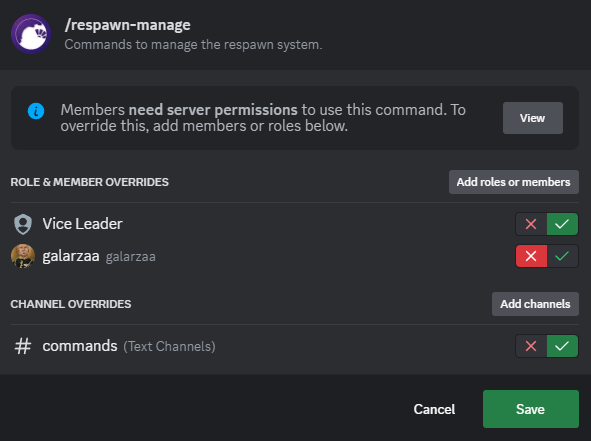
In the example above for /respawn-manage:
- Only @Vice Leader can use it.
- @galarzaa is explicitly denied.
- It’s restricted to #commands.
Note
The server owner and members with Administrator permission can always use all commands, anywhere.
Warning
Be deliberate with overrides. Granting a powerful command to the wrong role can cause irreversible changes to your server configuration.
Quick reference
- Browse commands: type
/and scroll or filter - Navigate arguments: Tab / Shift+Tab
- Fixed choices: pick from options
- Large/variable lists: use autocompletion
- Special types: select users, roles, channels from native pickers
- Manage access: Server Settings → Apps → Integrations → NabBot → Manage
Troubleshooting
I don’t see a command
- You might lack permission or the command is restricted to certain channels.
- The command could be a subcommand; check its parent.
My command says I’m missing permissions
- Ask an admin to review command overrides.
- Some commands have default restrictions after install.
The command runs, but nothing happens
- Check the channel restrictions and your role restrictions.
- Some commands respond ephemerally; look for a private response on your client.